How to Install AppImage Properly on Linux

(With Desktop Icon & Dock Fix)
AppImage is one of the best formats on Linux — portable, no root required, and works on any distro.
But most people just double-click it and face problems like:
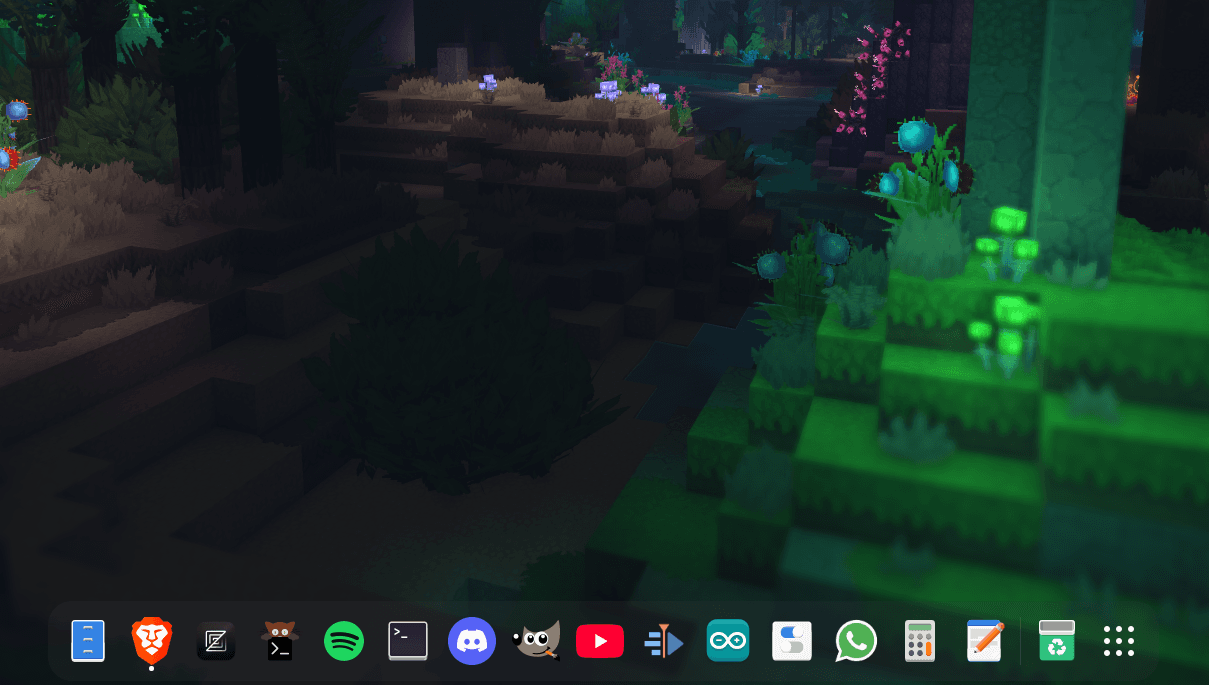
- No icon in dock
- Duplicate icons
- No menu entry
- App doesn’t remember permissions
This guide shows the correct and clean way to install AppImage apps like a real Linux program.
Step 1 – Create an Applications Folder
First, create a proper place to store AppImages:
mkdir -p ~/ApplicationsMove your AppImage files there:
mv *.AppImage ~/Applications/This keeps your home directory clean and avoids broken shortcuts.
Step 2 – Make AppImage Executable
Go to the Applications folder:
cd ~/Applications
chmod +x MyApp.AppImage
Now the app is runnable.
Step 3 – Run the App Once
./MyApp.AppImageThis allows Linux to:
- Register permissions
- Create cache
- Let you extract icons later
If any chance App does't open try to install and open!
sudo apt install fuse
or
sudo apt install libfuse2
Step 3 – Add Icon Properly
Create a icons folder if not present:
mkdir -p ~/.local/share/iconsSo now for App Icon you can download any (custom) .png icon from internet and move it to ~/.local/share/icons
mv icon.png ~/.local/share/iconsStep 4 – Create Desktop Entry
Create a desktop file:
nano ~/.local/share/applications/myapp.desktopPaste this: (Ctrl+Shift+V)
[Desktop Entry]
Version=1.0
Type=Application
Name=MyApp
Comment=My Application
Exec=/home/USERNAME/Applications/MyApp.AppImage
Icon=/home/USERNAME/.local/share/icons/myapp.png
Terminal=false
Categories=Utility;Development;
StartupNotify=true

StartupWMClass=Exactly name as app name
Replace:
- USERNAME
- MyApp.AppImage
- myapp.png
- StartupWMClassmust exactly match the app name shown when the window opens
Must all paths are correct (verify again)
Save and exit. (Write: Ctrl + O, Save: Press Enter, Exit: Ctrl + X )
Step 5 – Refresh App Menu
update-desktop-database ~/.local/share/applicationsor just logout and login again